Features
Everything Hindsight does
A private work timeline for your Mac: track your day, see it by project, write the standup, and look back on the week.
Two ways to track
Start with nothing to set up, or let Hindsight build the timeline for you.
- Manual trackingAdd an activity with its time, category and project. No permissions, no AI setup, and no screen content captured.
- Automatic tracking, if you want itA still screenshot every 20 seconds by default and when you switch apps, skipping frames where nothing changed. It needs Screen Recording permission only, never Accessibility.
- Window titles from macOSThe window you are using is the one captured, and private browsing windows are never recorded.
- Away is not workSleep and idle time are marked as away. Hindsight can pause itself after a few idle minutes.
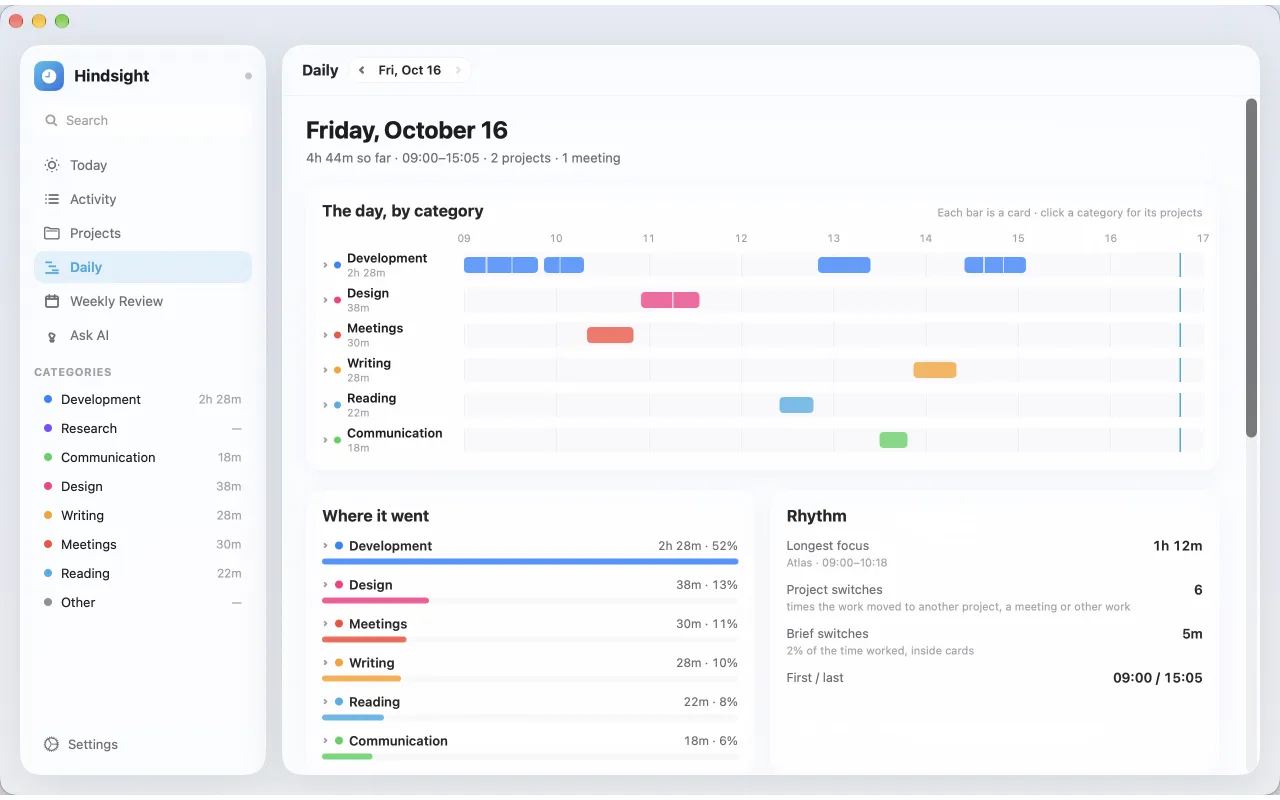
See the day
One screen for each day, built from your timeline.
- DailyEach day by category and project, every activity a bar at the exact time it happened, with brief switches and time away shown.
- Where it went and rhythmTime and share per category and project, your longest stretch of focus, project switches and brief switches.
- StandupWhat you got done by project, with the time it took and the pull requests you worked on. Edit, reorder or add lines, tick off what is next, and copy it into Slack. Unticked items carry over to the next day.
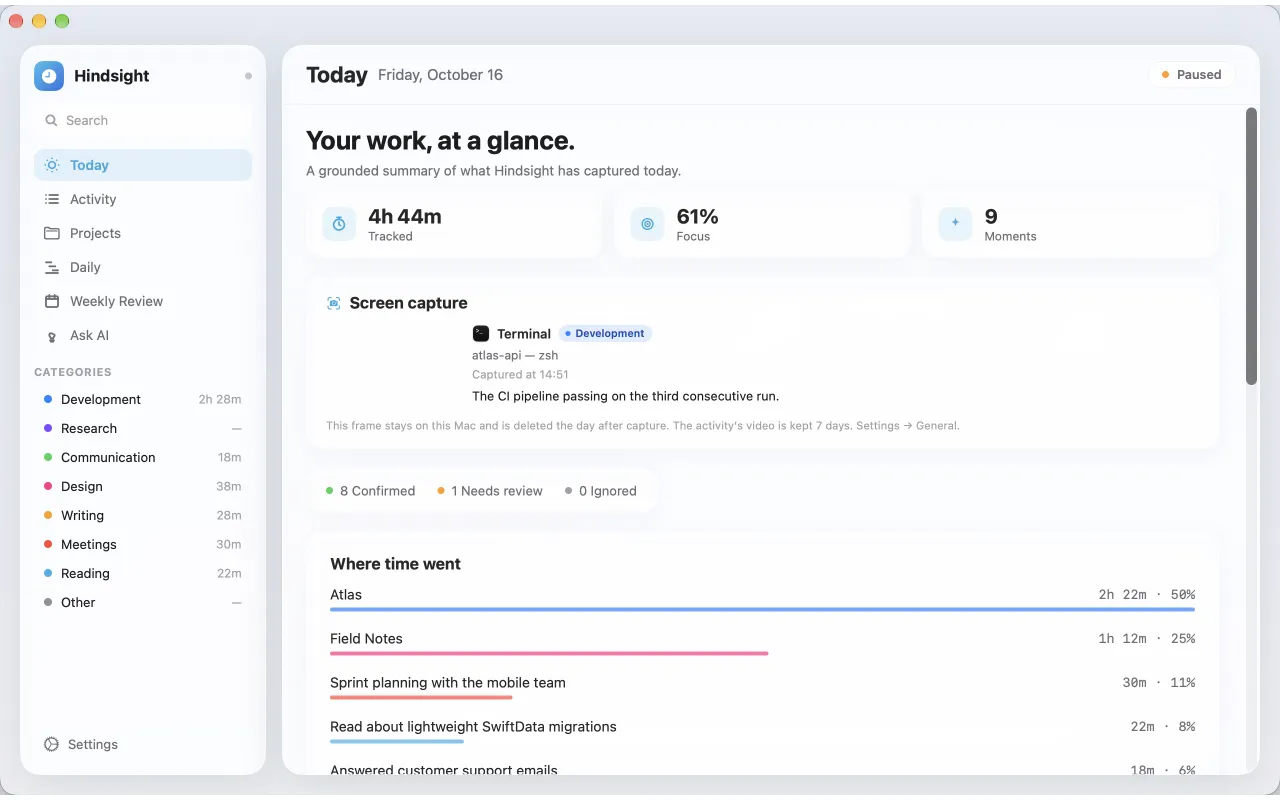
- TodayTracked time, focus, moments, projects, unaccounted gaps and your daily goals at a glance.
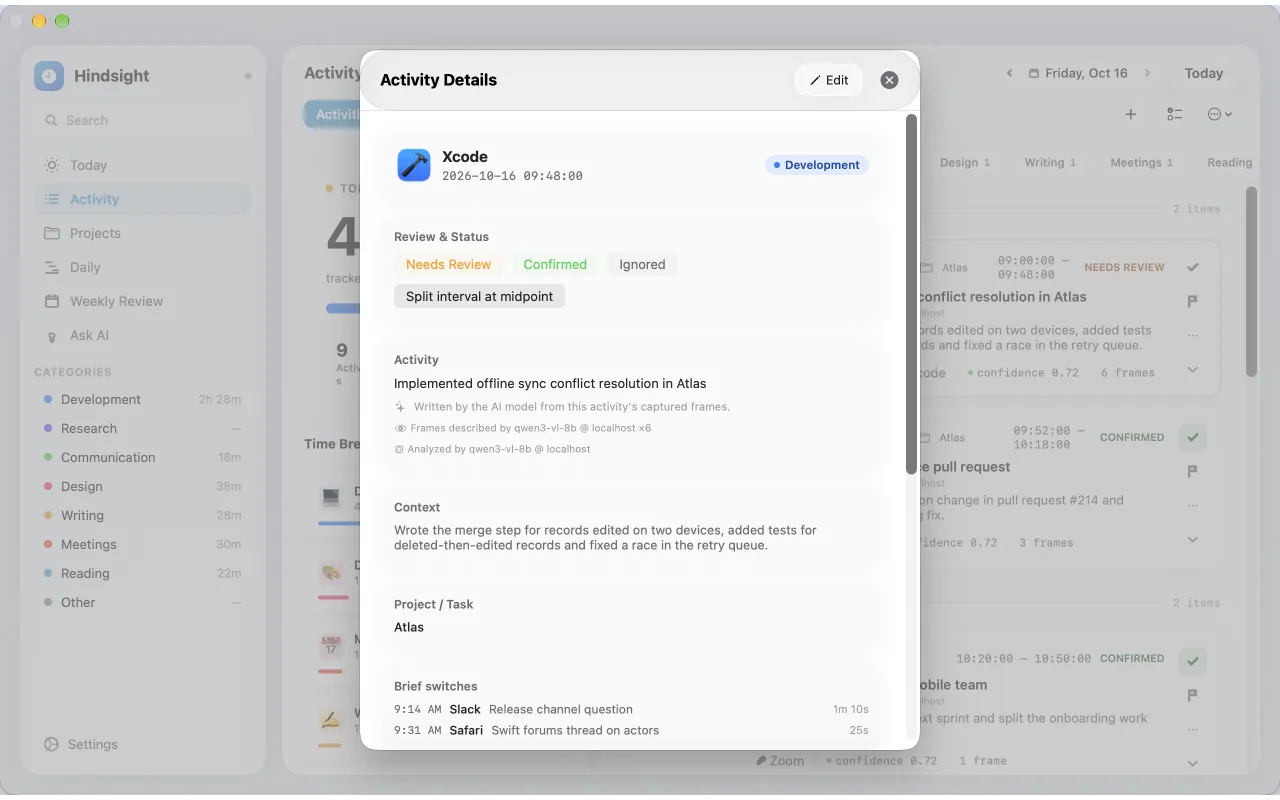
Keep the record honest
Every activity is tied to what was on screen, and you have the last word.
- Activity logExact start and end times, a film-strip timeline, and a breakdown by project and category.
- EvidenceScreenshots, screen text and the steps behind each activity, with the AI model that wrote it.
- ReviewEverything that needs a look in one place, with the reason it was flagged. Confirm, edit, ignore or retry each one, or confirm them all.
- Correct it in secondsEdit the title, project and category, split an activity in two, or reclassify several at once.
- Numbers come from the timelineEvery duration, total and percentage is measured. The AI writes the words, never the numbers.
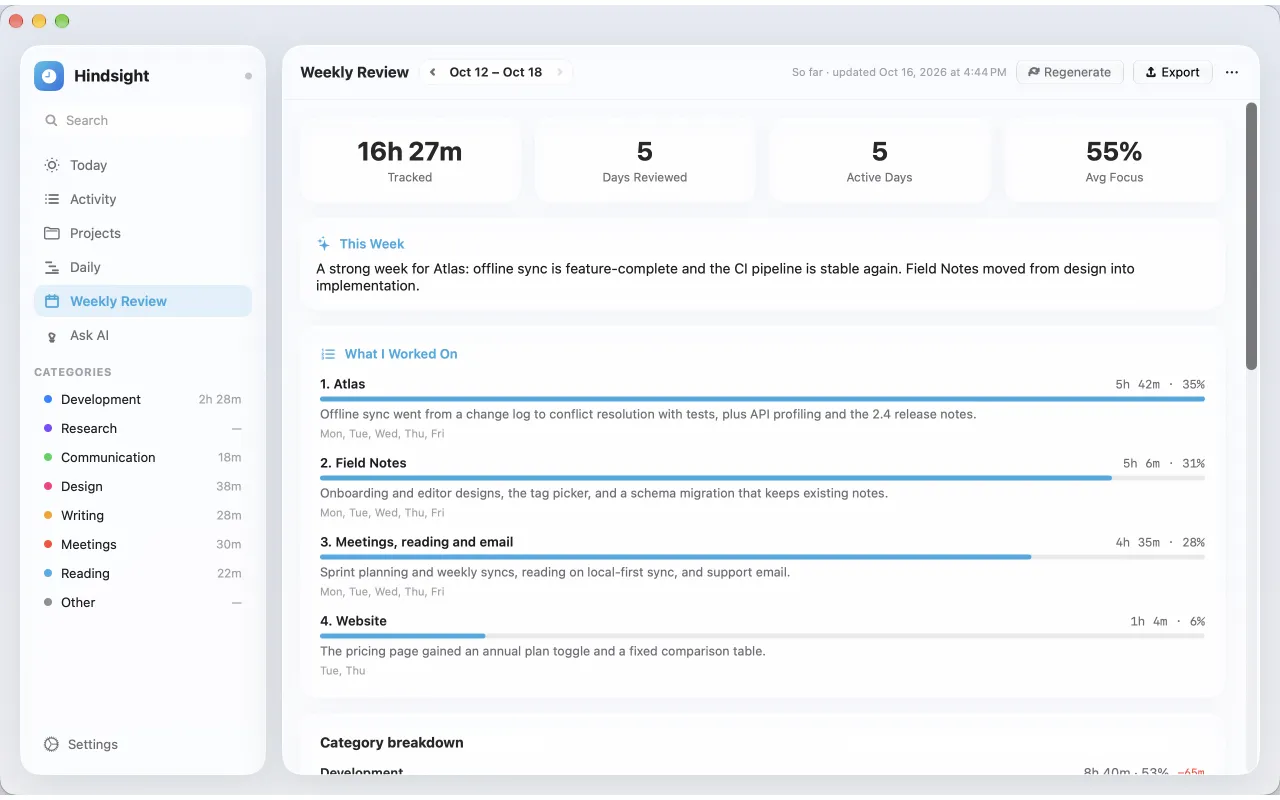
Projects and the week
Time per project, and a week you can send to a client.
- Projects you chooseTime goes to a project only when the screen proves it: one of its repositories, a file in one of its folders, or a window title with its name.
- Suggested projectsHindsight suggests projects from what it has seen, with their rules filled in. Declare the ones you want and ignore the rest.
- Project reportTime today, this week, this month or over 90 days, with share of tracked time, top apps and activities. Export it as CSV.
- Weekly ReviewThe week's work grouped into pieces of work with totals, day by day. Export it as a PDF for a client or timesheet, or every activity as CSV.
Ask and focus
Answers from your own time, and help staying on task.
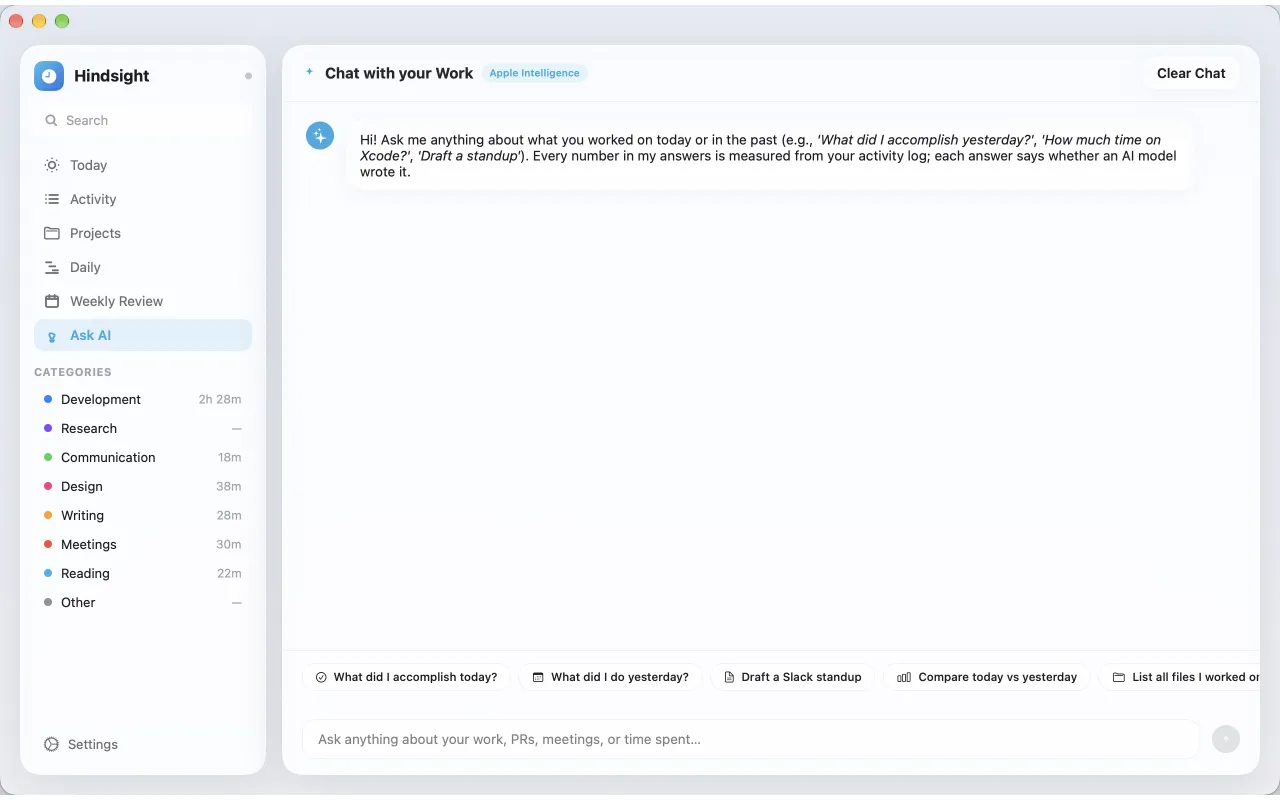
- Ask AIAsk about your workday in plain words, such as what you worked on yesterday afternoon. Answers come from your activity log.
- Focus TimerPomodoro-style sessions with focus, break and long-break lengths you set, and an alert when a session drifts into a distracting app or category.
- Daily goals and limitsA goal (at least) or a limit (at most) for any category, with progress on Today and in the menu bar.
- Siri and ShortcutsAsk what you worked on today or how long you spent on a project, start or pause tracking, or start a focus session.
- Calendar contextMeetings are named after your calendar events. Declined, canceled and all-day events are ignored. Off by default.
AI and your data
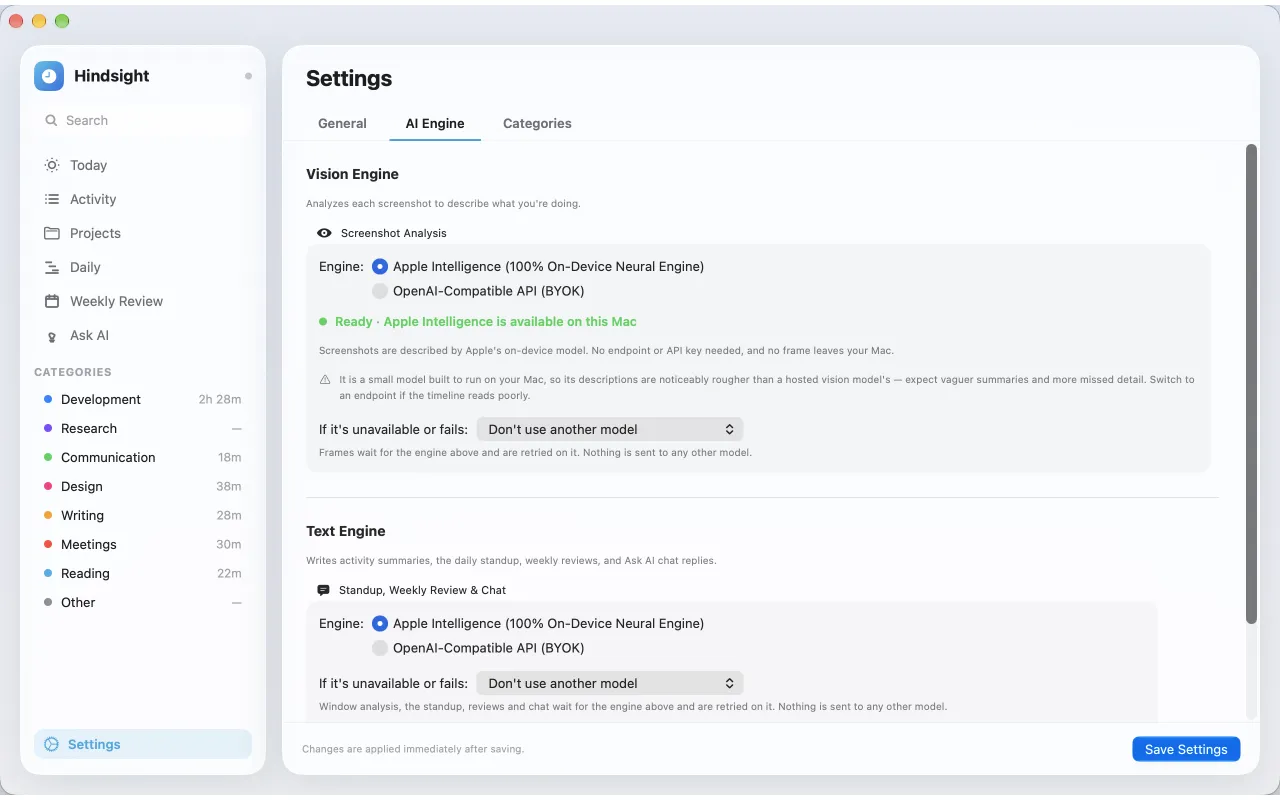
Pick the engine, keep the data.
- Vision and text enginesOne engine describes screenshots, another writes standups, reviews and answers. Each can have a fallback you set, and Hindsight never switches on its own.
- Apple IntelligenceWrites text on your Mac on macOS 26 and later, and describes screenshots on your Mac on macOS 27.
- Your own endpointAny OpenAI-compatible API: OpenAI, OpenRouter, Ollama, LM Studio or llama.cpp.
- Storage you controlChoose screenshot resolution and frequency, see what an hour of tracking takes on disk, and set retention and a storage quota.
- iCloud syncThe text of your activities, projects, standups and reviews in your own private iCloud, end-to-end encrypted. Screenshots stay on the Mac. Off by default.
- Export and deleteCSV and JSON export for any dates, one-click backups and restore, and Delete All Data to remove everything.
Free on the Mac App Store
macOS 26 or later. No account, no subscription.