 Hindsight
Daily and your standup
Daily shows one day at a time: every activity at the time it happened, where the time went, and a standup written from your timeline.
The day, by category
Open Daily. Each category has a lane, and each activity is a bar at the exact time it happened. Click a category to see its projects, and click a bar to open the activity. Time away is shaded. Use the arrows next to the date to move between days.
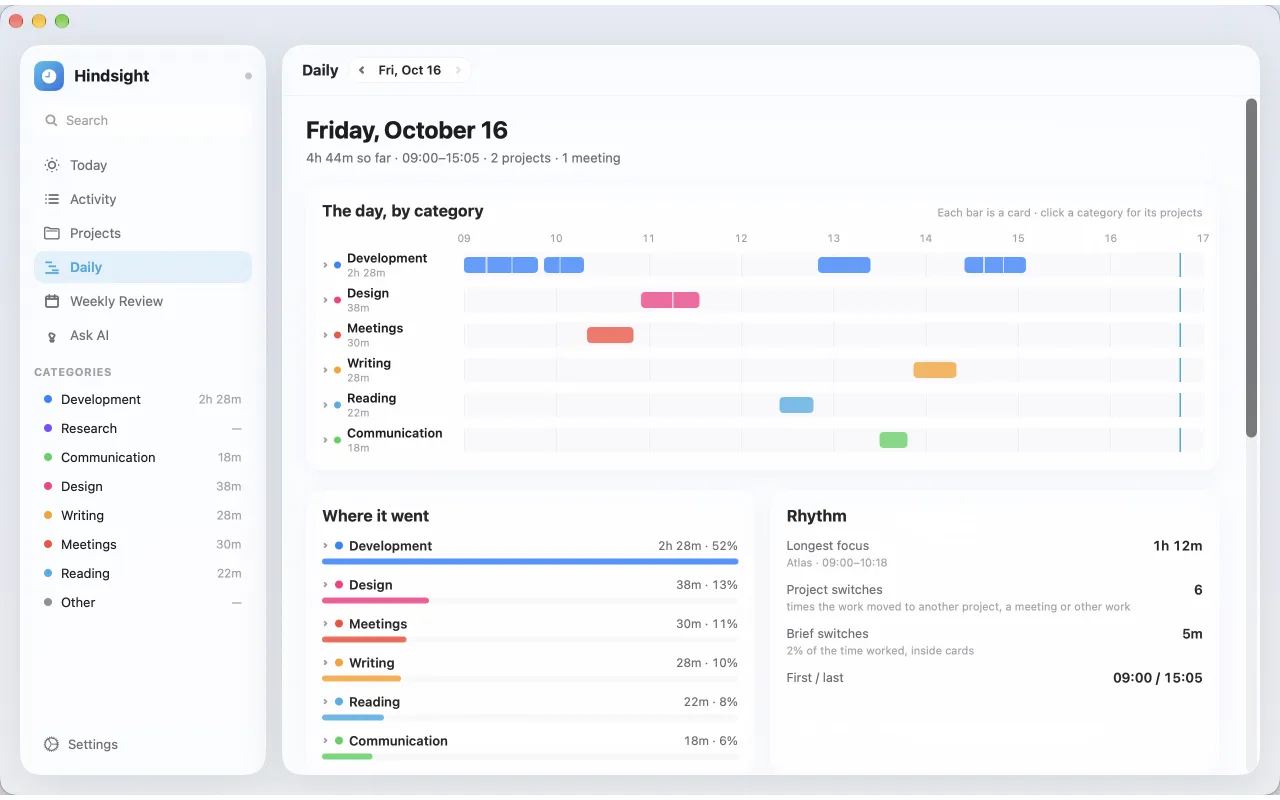
Below it, Where it went shows time and share by category and project, and Rhythm shows your longest focus, project switches, brief switches, and your first and last activity.
Your standup
Each day gets a standup: what you got done, grouped by project with the time it took and the pull requests you worked on, then meetings and what is next. A check mark means your screen showed it finished, such as a merged pull request or passing checks. Personal errands are left out.
- Edit, reorder or delete any line, or use Add line.
- Tick off items under Next. Anything left unticked carries over to the next day.
- Use the copy button to copy it as text for Slack.
- Turn Write automatically on or off from the standup's options. Writing the summary lines again keeps your own lines, ticks and blockers.
Every number in the standup comes from your timeline. The AI writes the words, never the durations.
Still stuck? Email [email protected] and we will help.