
01 · DAILY
Every day, laid out by project
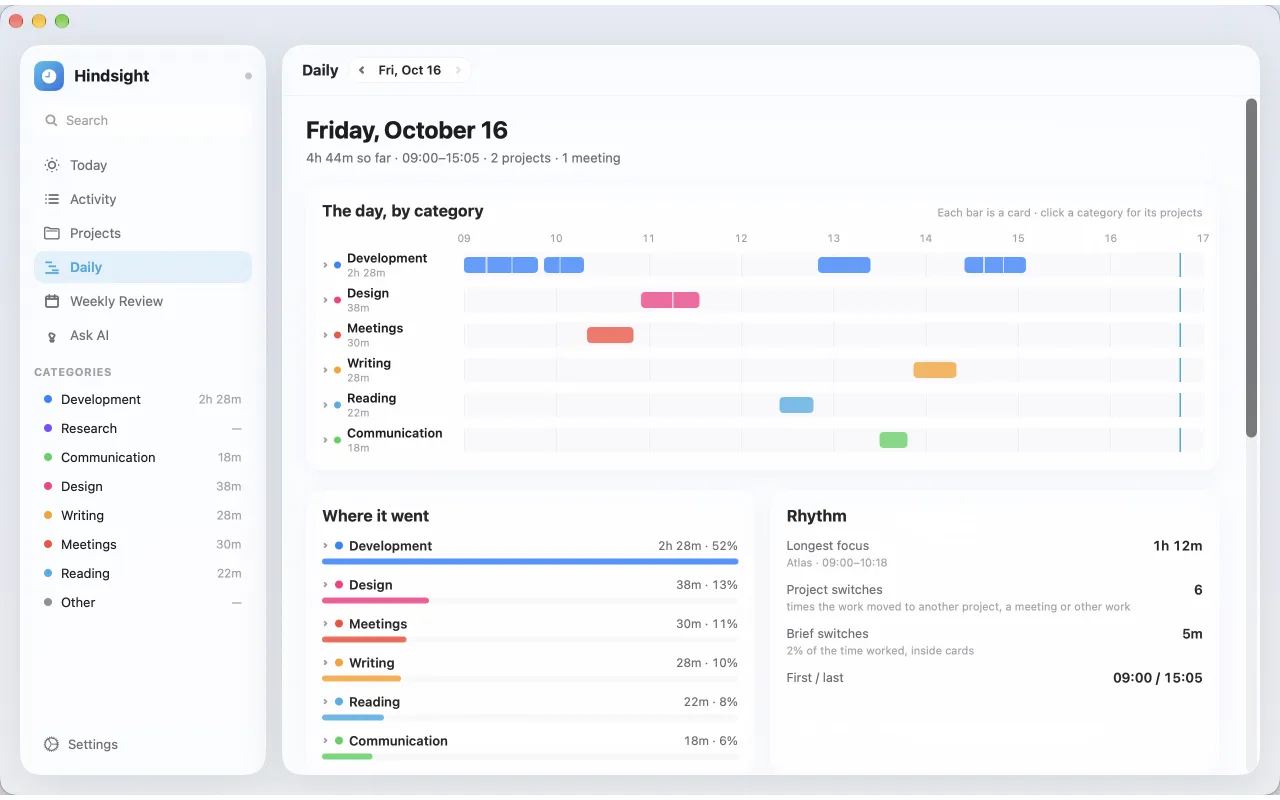
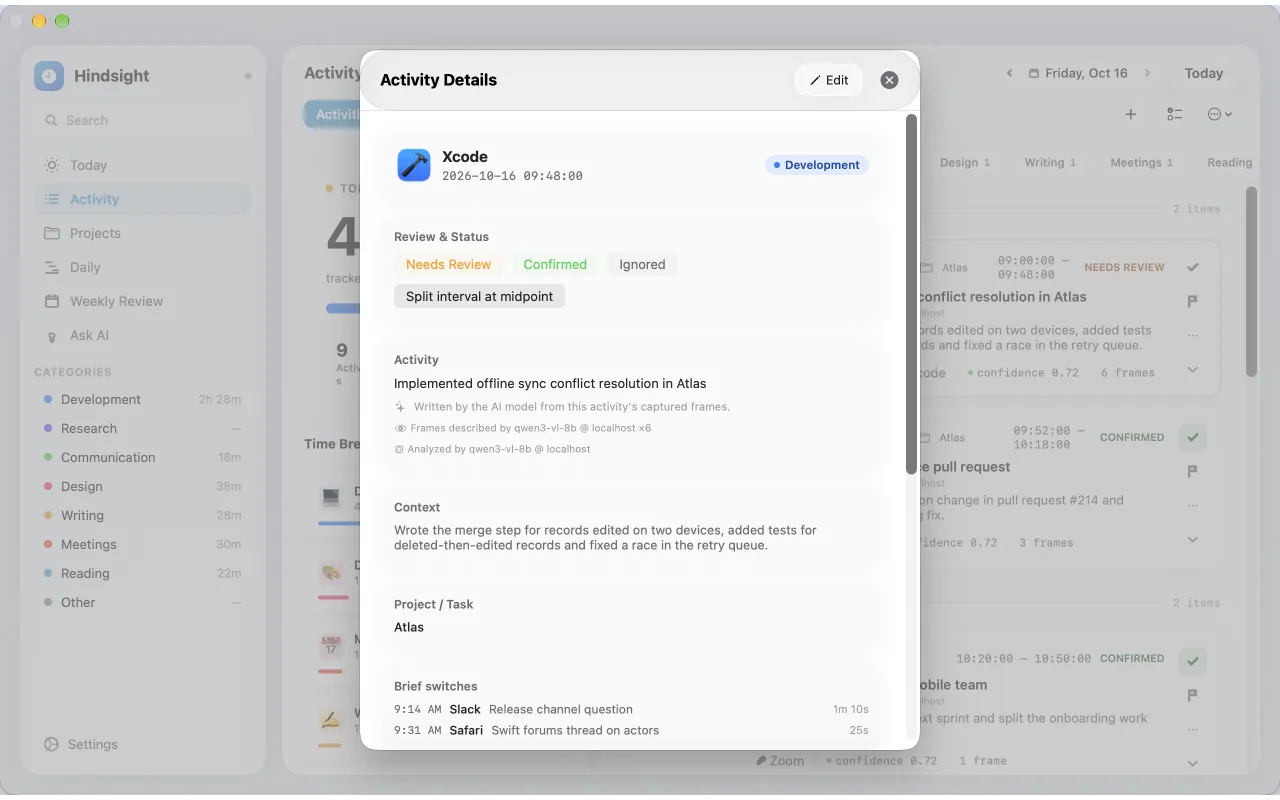
Each activity is a bar at the time it happened, colored by category. See where the time went, your longest stretch of focus and how often you switched.
Work timeline for Mac
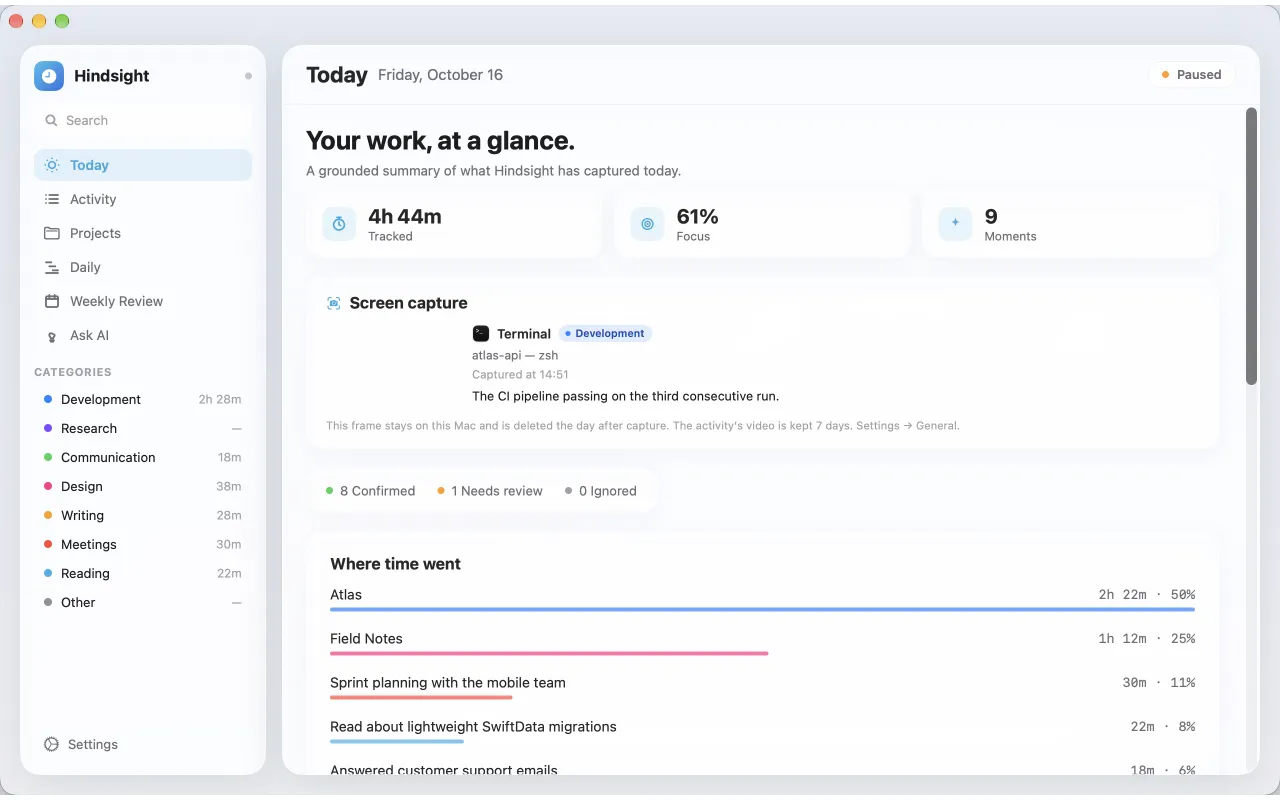
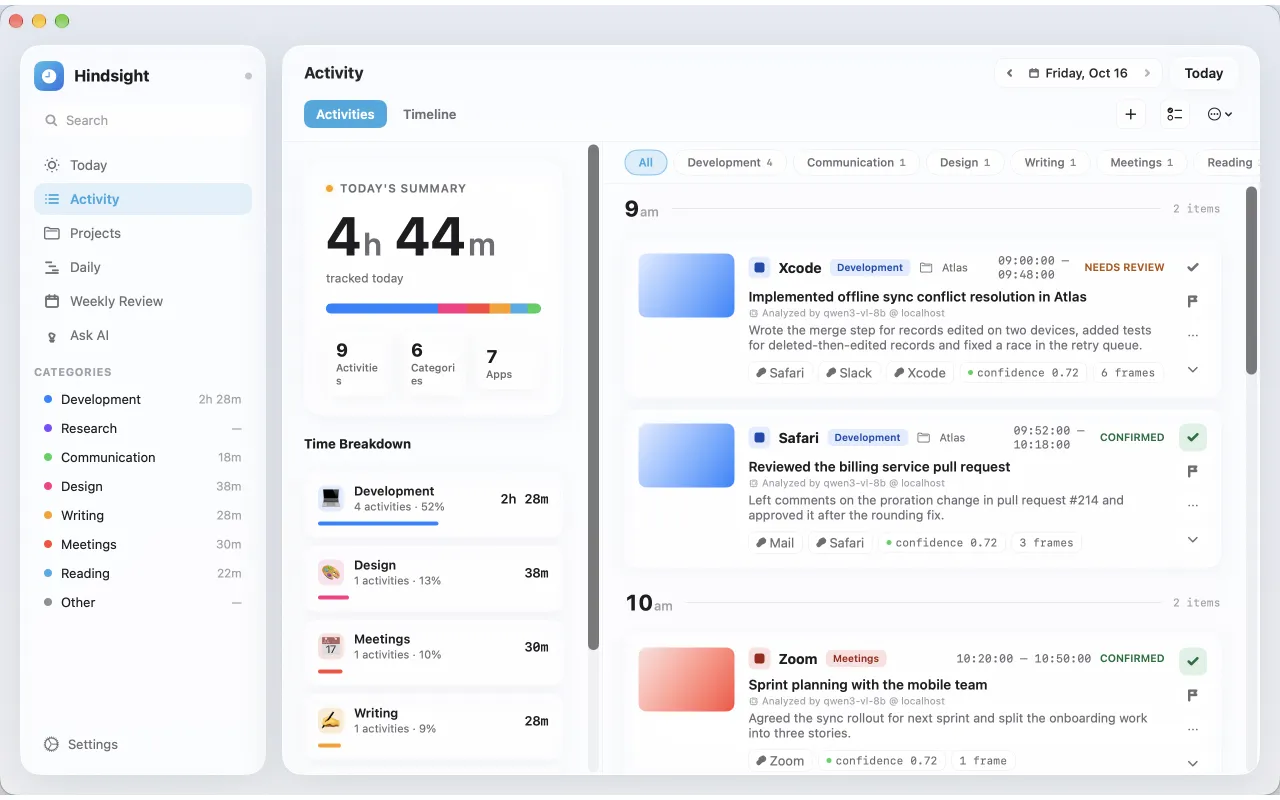
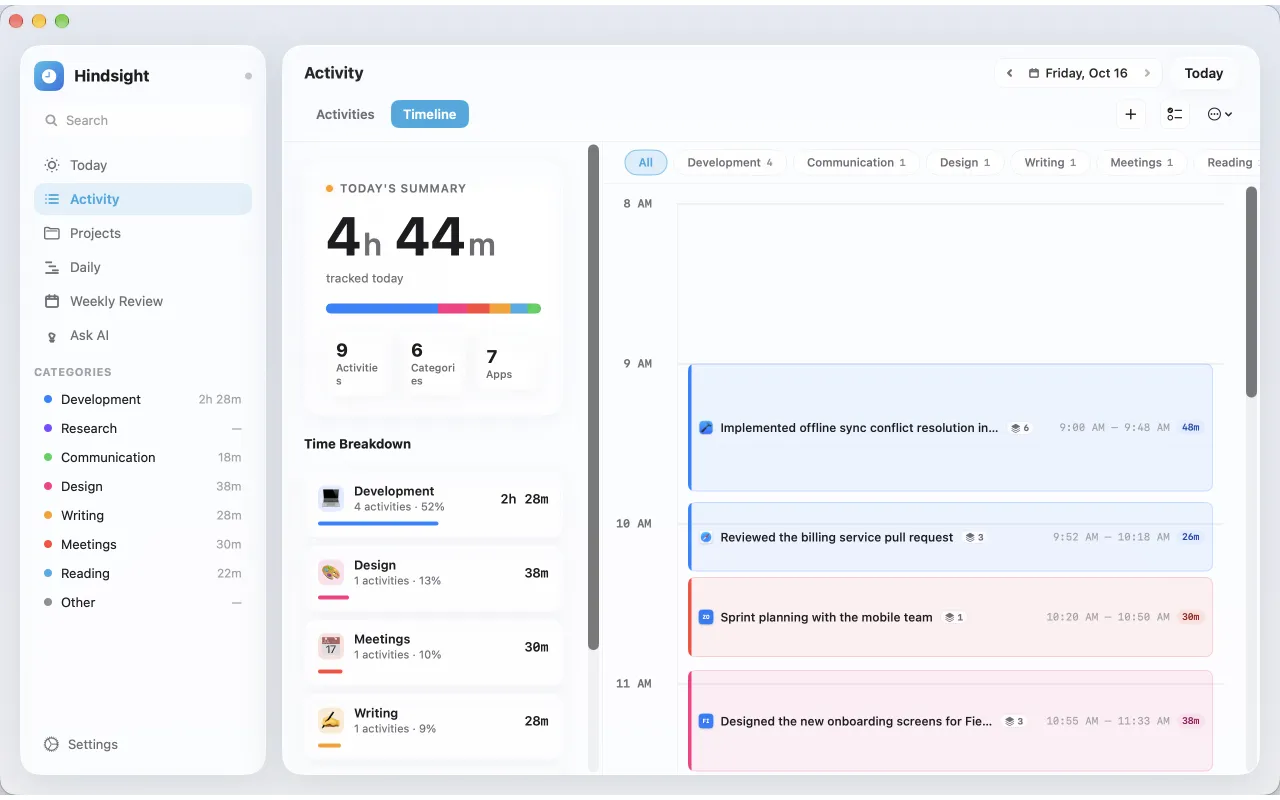
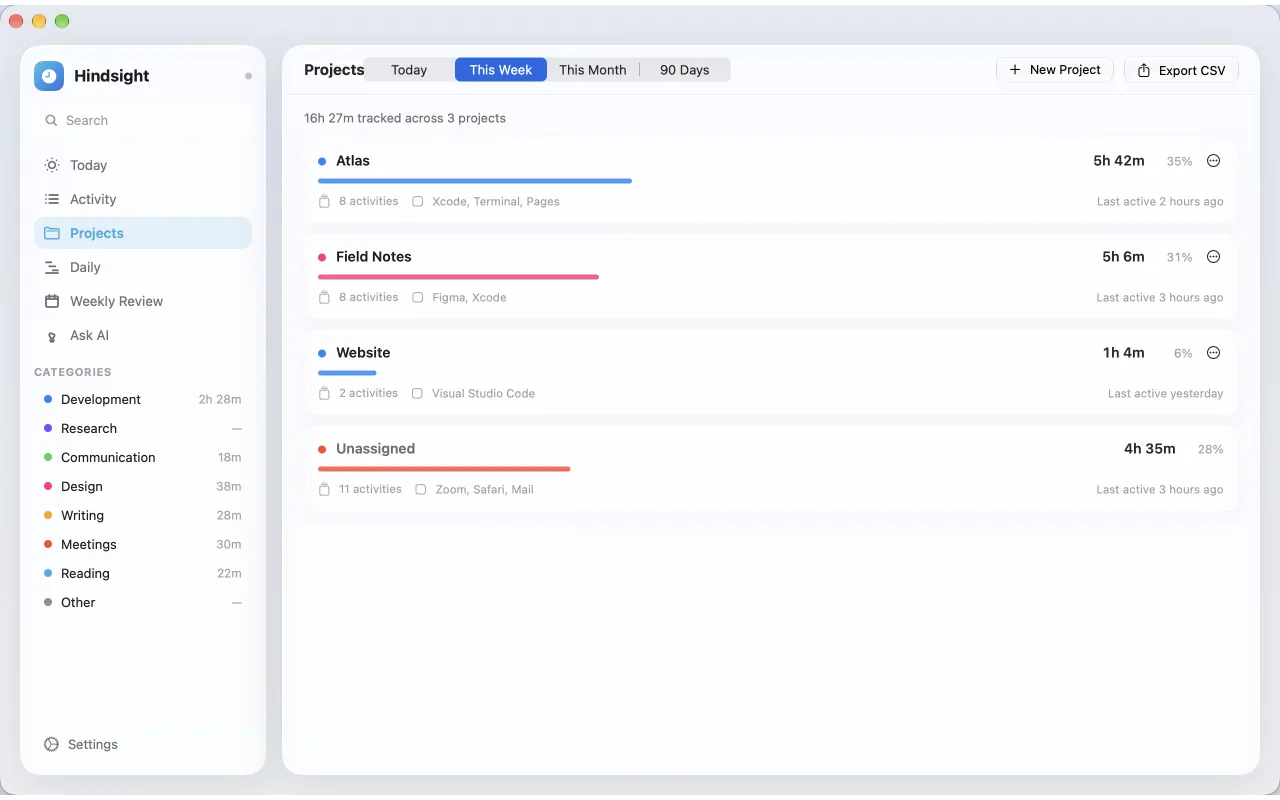
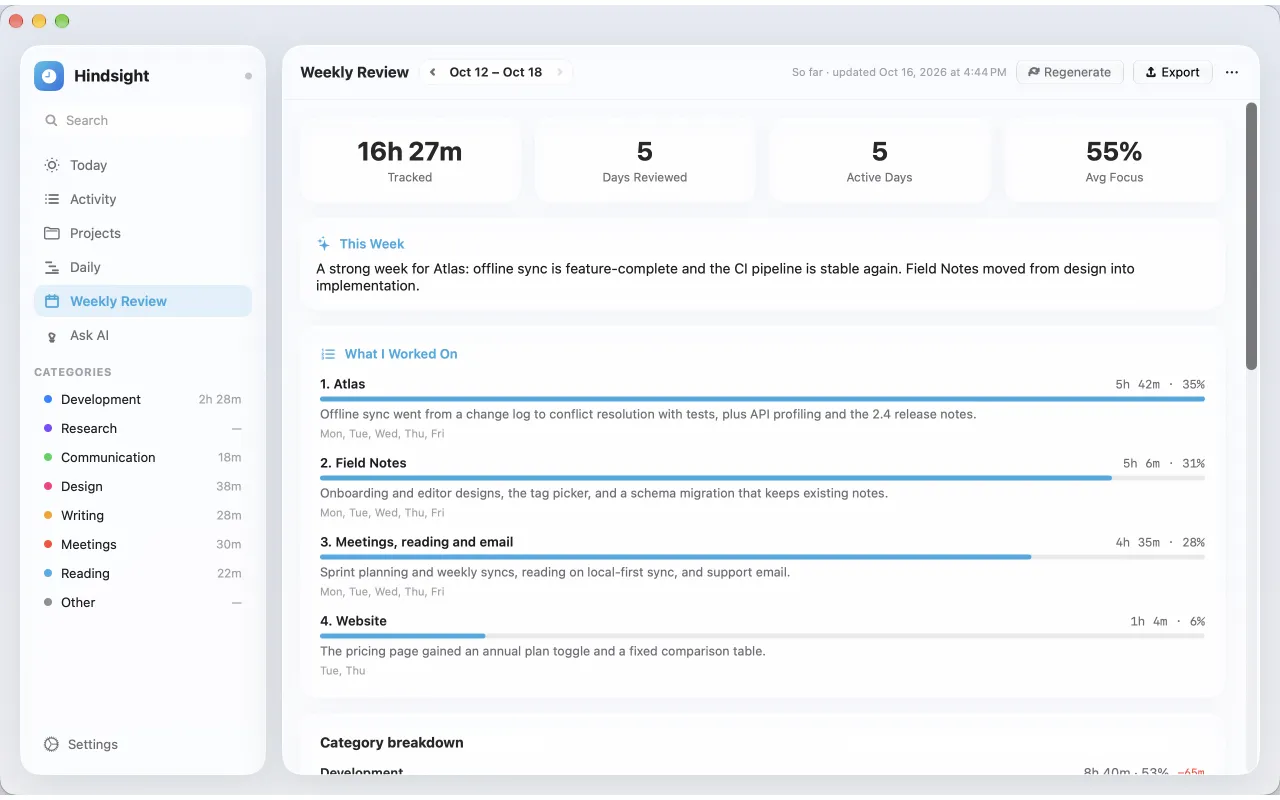
Hindsight keeps a private timeline of your day on your Mac. Add activities yourself, or let it track automatically with an AI you choose. See each day by project, get a standup written for you, and look back on your week with real numbers.
An illustration of Hindsight's Daily screen for Friday, October 16: Development, Meetings, Design, Reading, Communication and Writing each have a lane, with a bar for every activity at the time it happened, and a standup card listing what got done by project.
01 · DAILY
Each activity is a bar at the time it happened, colored by category. See where the time went, your longest stretch of focus and how often you switched.
02 · STANDUP
What you got done, grouped by project with its time and pull requests. A check means your screen showed it finished. Edit any line, then copy it into Slack.
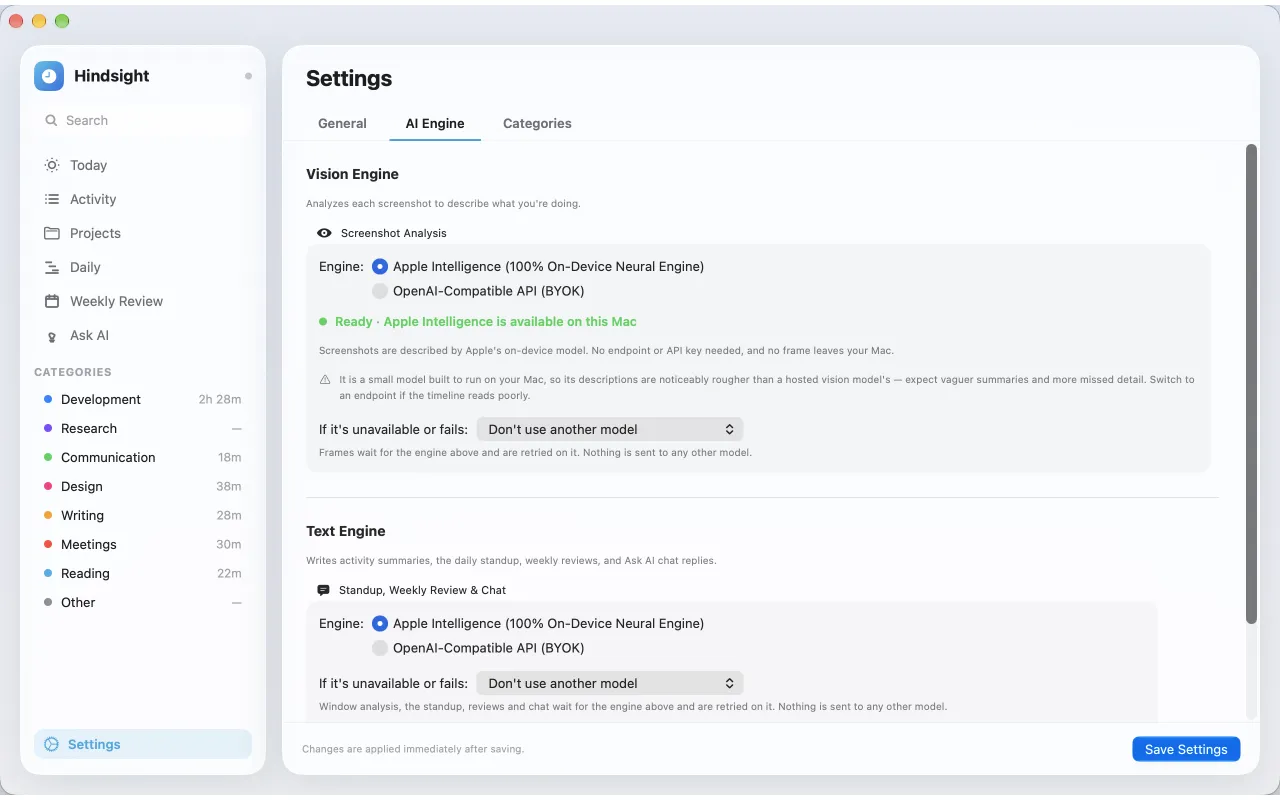
03 · AI ENGINES
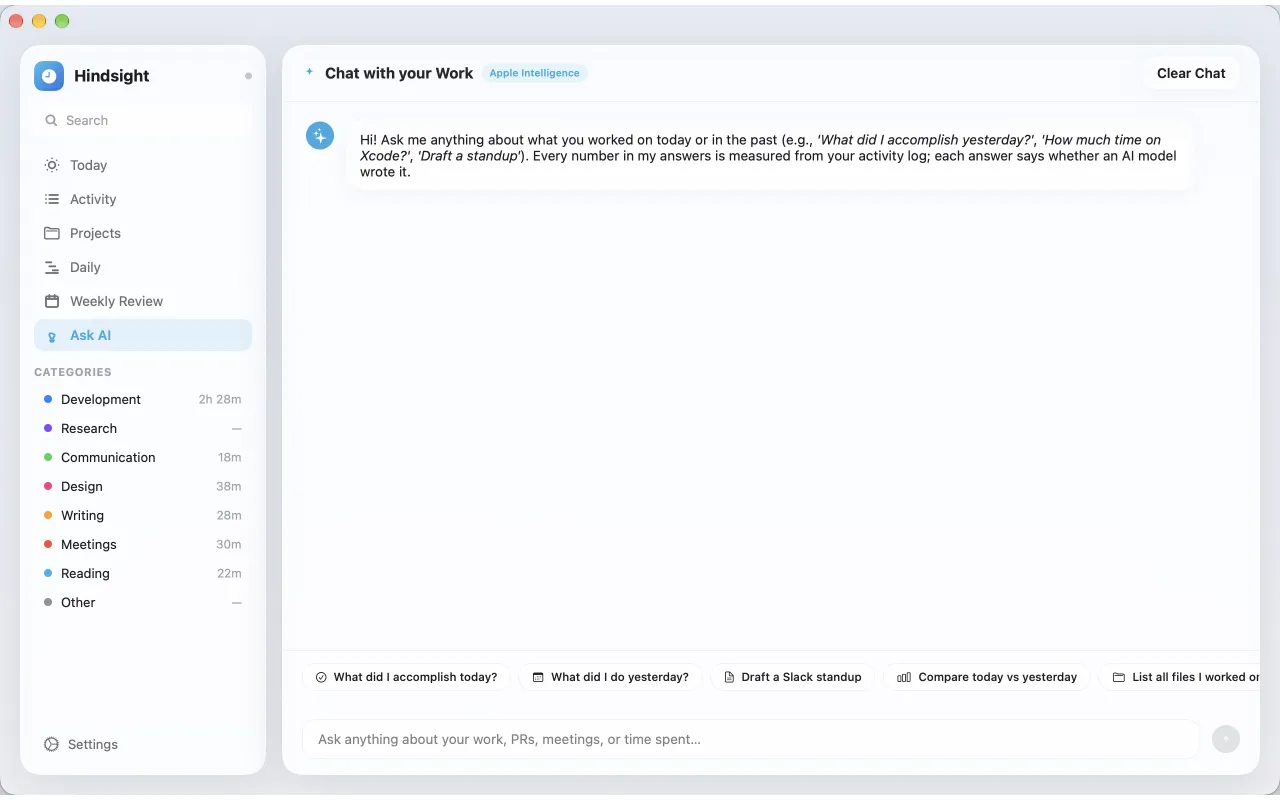
Apple Intelligence on your Mac, a local model, or your own API key. Hindsight uses the engine you pick and nothing else.
04 · FOCUS
A Pomodoro-style timer that watches what you are actually doing, and tells you the moment a session drifts into a category you marked as distracting.
Focus sessionWriting · 25 min, then a break


Privacy
Activities, screenshots and screen text are stored on your Mac. There is no account, no server and no analytics. Nothing is ever sent to the developer, because there is nowhere to send it.
Automatic tracking is opt-in and takes still screenshots only, never video or audio. Password managers, authenticator apps, private windows and browser sign-ins are skipped, and screenshots delete themselves after 7 days by default.
Screen content leaves your Mac only if you connect a cloud AI provider yourself. Optional iCloud sync keeps the text of your activities in your own private iCloud, end-to-end encrypted.
Yes. Hindsight is free on the Mac App Store. There is no account to create, no subscription and no ads.
No. You can add activities yourself, with no permissions and no AI setup. Automatic tracking is optional: it needs Screen Recording permission only, never Accessibility, and you can pause it at any time.
Only if you choose a cloud AI provider. With Apple Intelligence or a local model such as Ollama or LM Studio, screenshots never leave your Mac. With a cloud provider you configure, the content needed for analysis goes straight from your Mac to that provider, using your own API key. Nothing is ever sent to the developer: Hindsight has no servers.
The one you pick, and only that one. Apple Intelligence writes standups, reviews and answers on your Mac on macOS 26 and later, and describes screenshots on your Mac on macOS 27. Or connect any OpenAI-compatible endpoint: OpenAI, OpenRouter, Ollama, LM Studio or llama.cpp. Hindsight never switches to another model on its own. See Choose an AI engine.
Password managers, authenticator apps, private browsing windows, and any browser while a password field is focused. You can exclude more apps in Settings. Sleep and idle time are marked as away, not counted as work.
Screenshots are deleted automatically after 7 days by default, within a storage quota you set. Settings shows how much an hour of tracking takes on your Mac, and lets you lower the screenshot resolution and frequency.
A Mac with macOS 26 or later. For automatic tracking you also need an AI engine that can describe screenshots: Apple Intelligence on macOS 27, or your own OpenAI-compatible endpoint.
Finish the day with a record you can trust, instead of reconstructing it from memory.