 Hindsight
Projects
Time goes to a project only when the screen proves it: one of its repositories, a file in one of its folders, or a window title with its name.
Declare the projects you want
Hindsight gives new activities only declared projects. It also suggests projects from what it has seen in the last two weeks, with their repositories and folders filled in.
- Open Projects and look under Suggested projects.
- Click Declare as Project… on the ones you want. Recent activities that show it move to it.
- Click Ignore on the rest.
To add one yourself, click New Project.
Rules
Use Edit Rules… to change a project's other names, repositories and folders. Adding a rule moves recent activities that match it.
Time per project
Choose a range: today, this week, this month or the last 90 days. Each project shows its time, share of your tracked time, top apps and activities. Use Export CSV for a report.
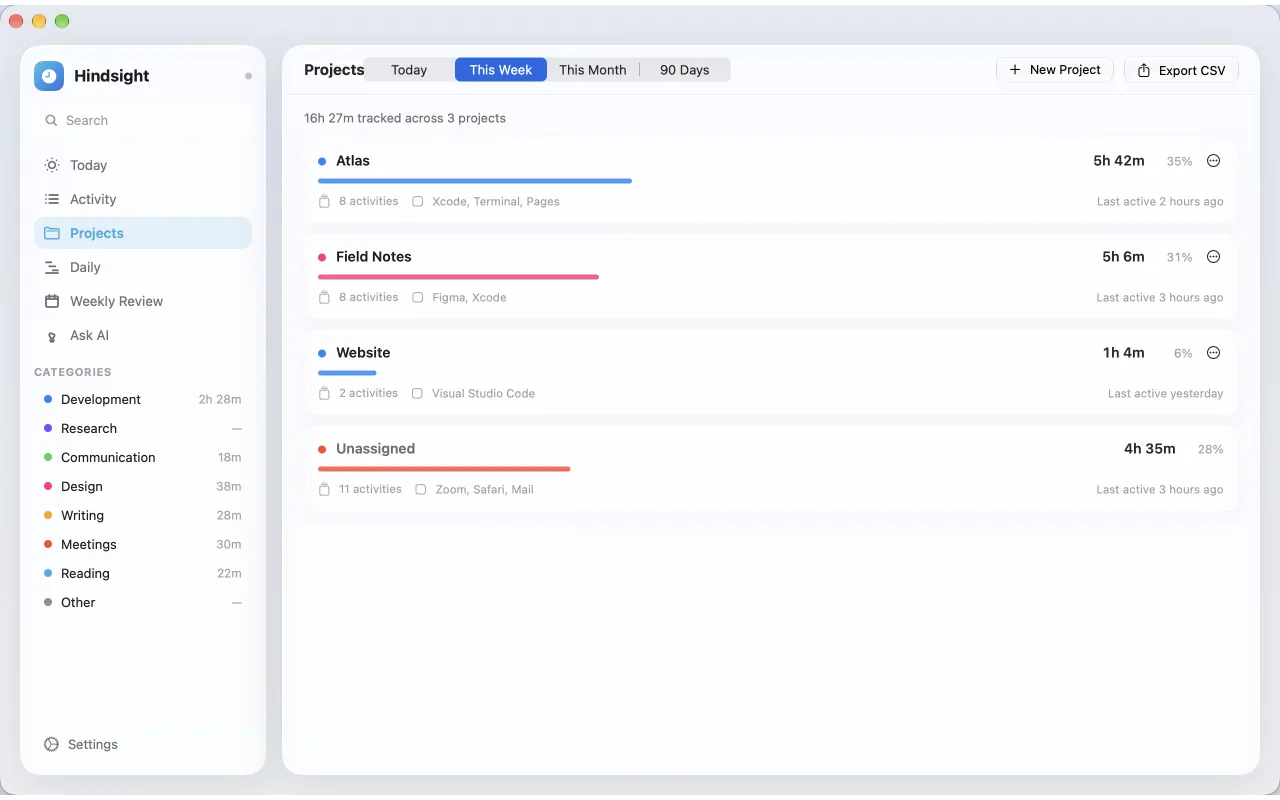
Rename, merge or remove
Rename… and Merge into change a project everywhere at once. Remove project… keeps its activities, which become Unassigned. To move single activities, select them in Activity and use Move to project.
Still stuck? Email [email protected] and we will help.